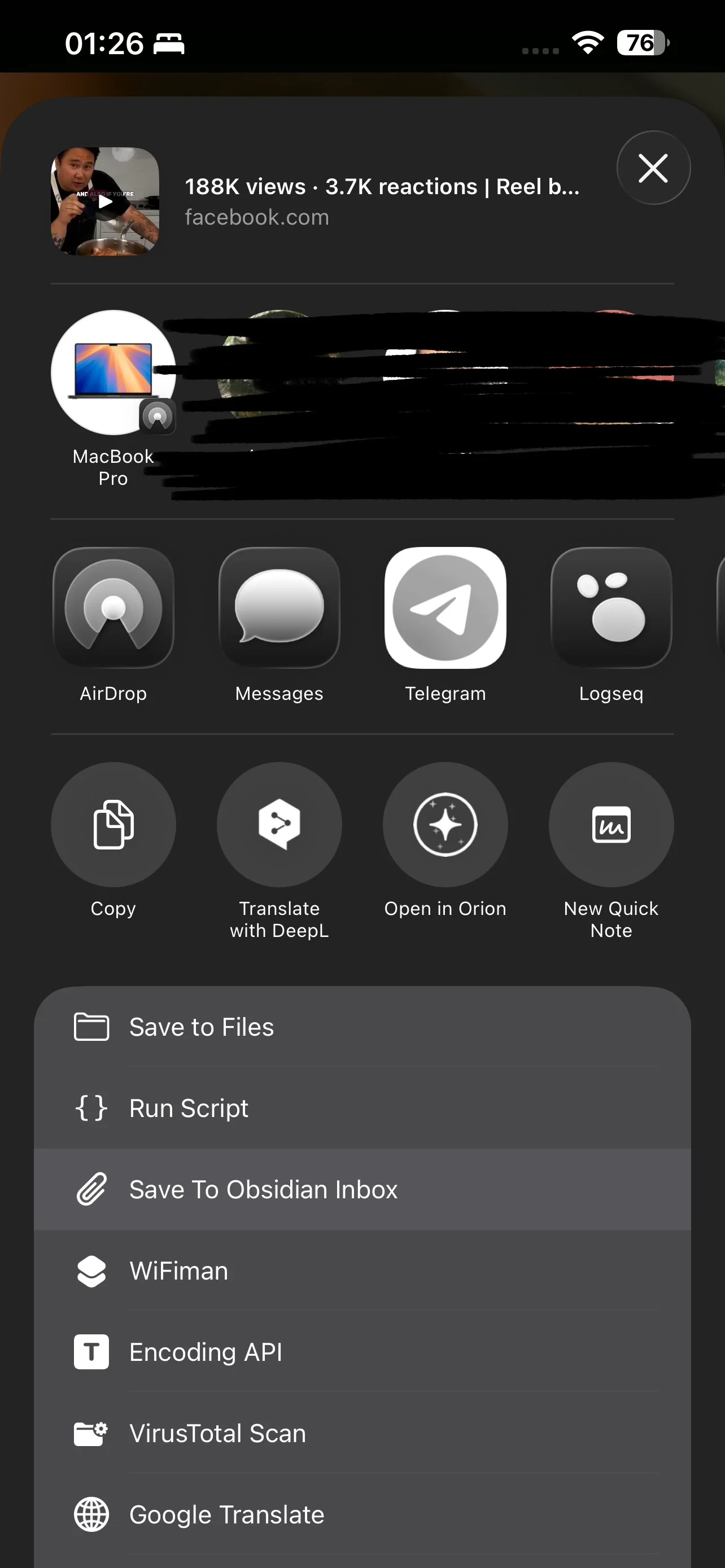
I wanted a simple way to drop things into Obsidian from my iPhone. Screenshots, articles, recipes, random snippets — anything I’d normally forget about until I stumble across it months later while scrolling through old photos.
I tried a handful of existing shortcuts. Most were broken, and the ones I tried were way over-engineered for what I needed. I didn’t realize that Apple Shortcuts is just a limited programming language that only offers graphical editing… and without any cross-device compatibility. My first iteration was an a-shell script that sorted inputs into an Inbox folder with different handling per file type, but it got way too complex with having to use the Apple Shortcuts app to do anything. Then I realized that the Obsidian iOS app includes native Apple Shortcuts actions, including one that appends content to a bookmarked file.
The Inbox Workflow
I do most of my actual thinking and organizing in Obsidian on my computer. Mobile is for capture, not curation. The whole point of an inbox is to eliminate friction: see something interesting, share it, move on. I’ll process it later when I’m at a real keyboard.
This used to mean screenshotting things “for later” — which in practice meant never. Now I can share directly from any app into a single Inbox.md file in Obsidian and actually find it again.
How It Works
The shortcut uses Obsidian’s built-in Shortcuts actions. When I share something:
- Text or URLs get appended to
Inbox.mdas a new entry with a timestamp - Photos and screenshots get saved to
Inbox/Attachments/, then linked in the inbox file - Everything else (PDFs, files, etc.) gets copied into the
Inbox/folder and linked from the doc
A single inbox file is the entry point, backed by an inbox folder for attachments and other media. One file to check, everything linked from there.
The Shortcut
It’s short enough that there’s not much to explain. The flow is basically:
- Receive the shared input
- Check the input type
- If it’s an image, copy to
Inbox/Attachments/and append a Markdown image link toInbox.md - If it’s text or a URL, append directly to
Inbox.md - If it’s another file type, copy to
Inbox/and append a link
Each entry gets a timestamp so I have some context when I’m processing later.
url: https://www.icloud.com/shortcuts/34117d5b3e354ee7bf7ecb2c423a8490
title: "Shortcuts"
host: www.icloud.com
No fancy tagging, no AI categorization, no multi-vault routing. Just a fast pipe from my phone to a place I’ll actually look at.
Update: After I wrote this post, I realized that iOS can directly share to Obsidian… where you can then select a file to append to. But I think that’s mostly for text. If you try to share an image with Obsidian, it asks if you want to import into vault. Seems like a lot more steps. I think I will keep using my shortcut.