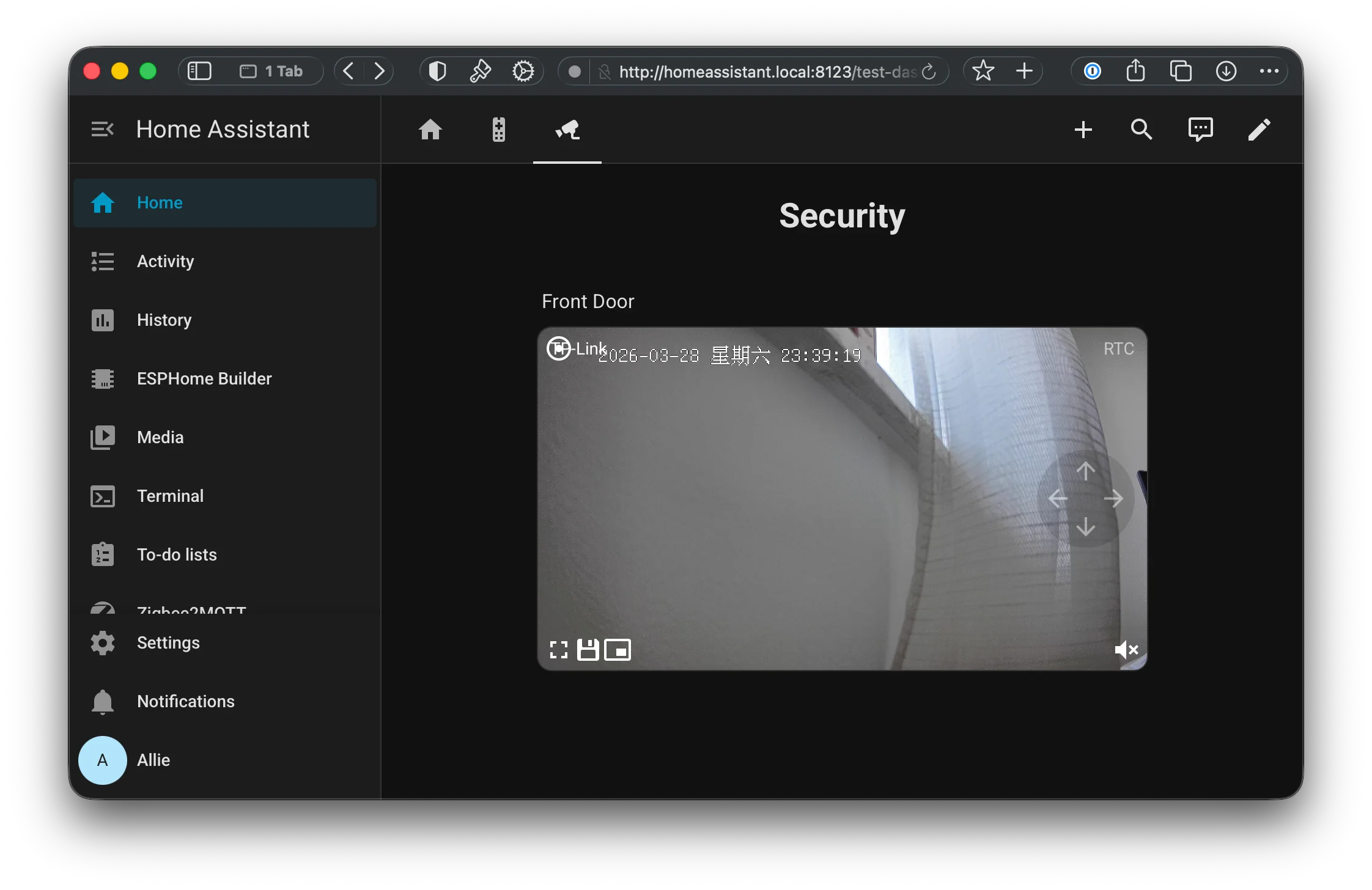
Most of the guides out there regarding TP-Link talk about Tapo (non-chinese brand), but TP-Link China has some amazing cameras, cheaper and with built in rtsp enabled!
Camera Model: TL-IPC45CL-V2 HAOS version: 2026.3.4 (worked on 3.3 as well)
Working features
- PTZ (pan/tilt control) works
- two-way audio works. You can play audio to your camera!
- WebRTC works
Steps
- Set a password for your camera upon initialization, using the TP-Link app. I think this step is necessary to enable RTSP. This step also connects your camera to your network via wifi.
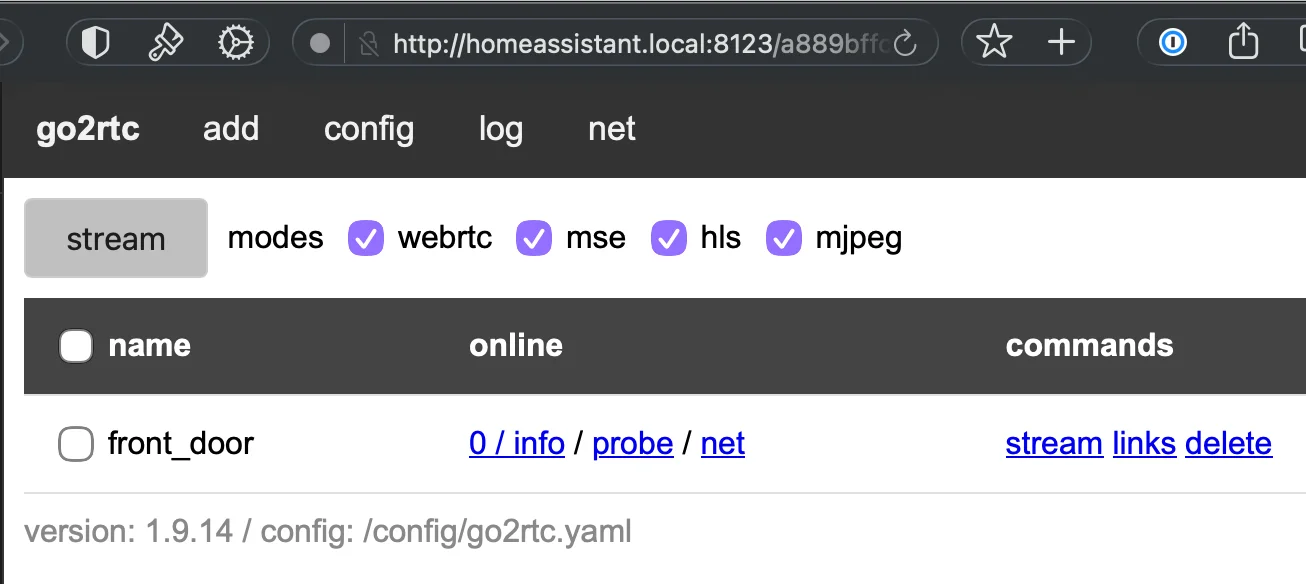
- Add your camera as an ONVIF integration, which should automatically detect your camera. This adds all the entities to HA, including video streams and other camera controls, ie PTZ.
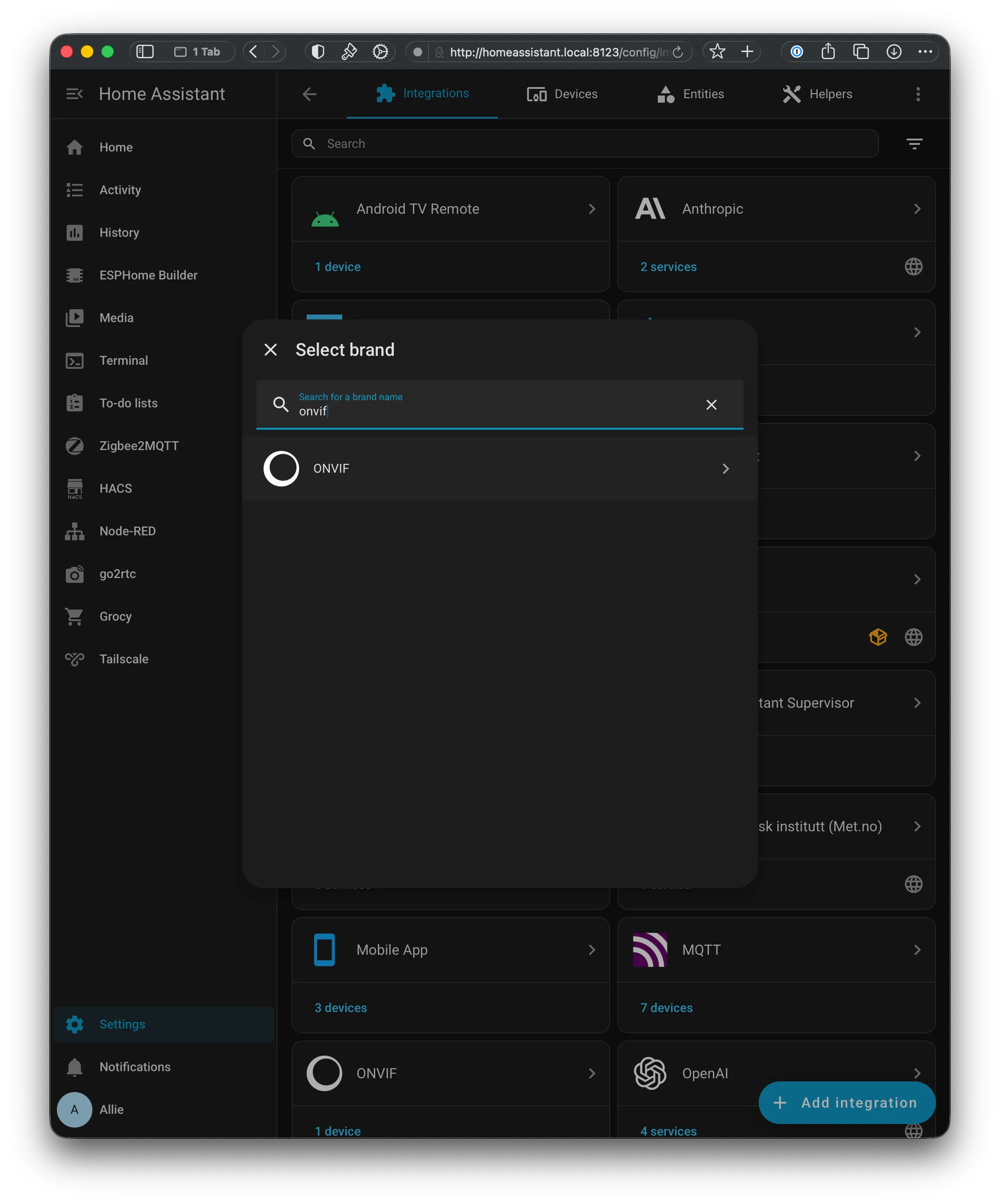
- Install and start go2rtc in HA so you get the latest version of it. 1.9.14 is the version I use, and it supports
multitransconnection so that two-way audio works. - In the go2rtc web ui, add your streams. Save & Restart.
streams:
  front_door:
    - rtsp://admin:password@<cam-ip>:554/stream1
    - multitrans://admin:password@<cam-ip>:554
 4. In HACS, install WebRTC Camera and follow its configuration instructions.
5. Add a Dashboard card which supports PTZ and webRTC
4. In HACS, install WebRTC Camera and follow its configuration instructions.
5. Add a Dashboard card which supports PTZ and webRTC
type: custom:webrtc-camera
entity: camera.tp_ipc_mainstream
mode: webrtc,webrtc/tcp,mse,hls,mjpeg  # stream technology, default all of them
media: video,audio,microphone  # select only video or audio track, default both

ui: true  # custom video controls, default false

digital_ptz:  # digital zoom and pan via mouse/touch, defaults:
  mouse_drag_pan: true
  mouse_wheel_zoom: true
  mouse_double_click_zoom: true
  touch_drag_pan: true
  touch_pinch_zoom: true
  touch_tap_drag_zoom: true
  persist: false  # zoom factor and viewport position survive page reloads

# digital_ptz: false  # to disable all mouse/touch digital zoom and pan

title: TP-Link # optional card title
poster: https://home-assistant.io/images/cast/splash.png  # still image when stream is loading
muted: true  # initial mute toggle state, default is false (unmuted)

intersection: 0.75  # auto stop stream when less than 75% of video element is in the screen, 50% by default
background: false  # run stream when not displayed (ex. for quick video loading), default false

shortcuts:  # custom shortcuts, default none
- name: Record
  icon: mdi:record-circle-outline
  service: switch.toggle
  service_data:
    entity_id: switch.camera_record

ptz:
  service: onvif.ptz
  data_left:
    entity_id: camera.tp_ipc_mainstream
    pan: LEFT
    move_mode: ContinuousMove
  data_right:
    entity_id: camera.tp_ipc_mainstream
    pan: RIGHT
    move_mode: ContinuousMove
  data_up:
    entity_id: camera.tp_ipc_mainstream
    tilt: UP
    move_mode: ContinuousMove
  data_down:
    entity_id: camera.tp_ipc_mainstream
    tilt: DOWN
    move_mode: ContinuousMove
- Added media player to
configuration.yamlso that you can stream audio to the camera directly
media_player:
  - platform: webrtc
    name: Front Door
    stream: front_door # this should match the stream you defined in go2rtc config.
    audio: auto
Now you can try the audio playback, in the media tab. I tried TTS streaming to the cam and it worked!
Notes
Other cards work as well, but might miss certain features (eg microphone for 2-way audio).
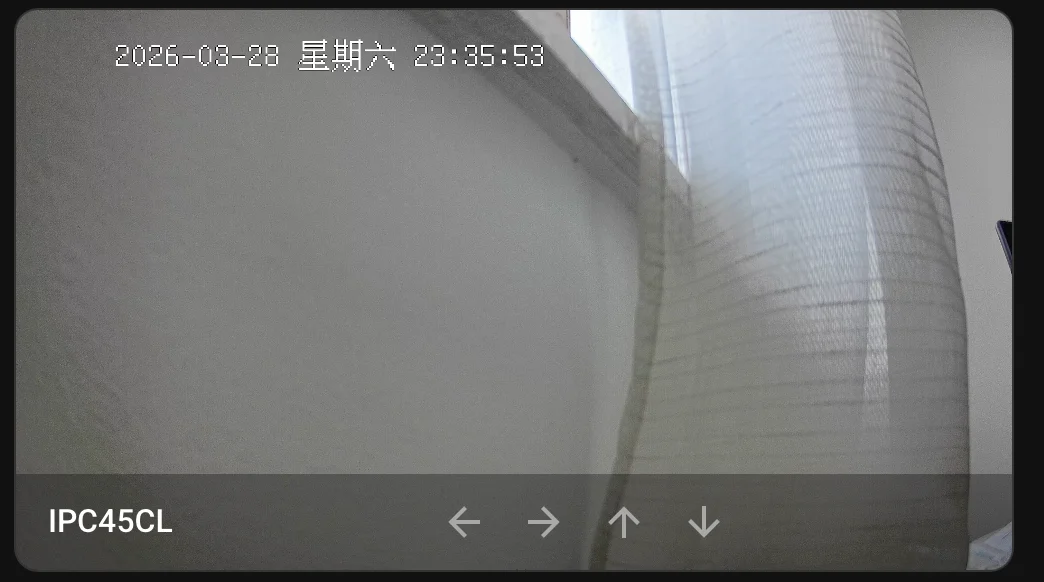
Picture glance card
type: picture-glance
title: IPC45CL
camera_image: camera.tp_ipc_mainstream
camera_view: live
entities:
  - entity: camera.tp_ipc_mainstream
    tap_action:
      action: perform-action
      perform_action: onvif.ptz
      target:
        entity_id: camera.tp_ipc_mainstream
      data:
        pan: LEFT
        speed: 0.5
        move_mode: ContinuousMove
    icon: mdi:arrow-left
    name: Left
  - entity: camera.tp_ipc_mainstream
    tap_action:
      action: perform-action
      perform_action: onvif.ptz
      target:
        entity_id: camera.tp_ipc_mainstream
      data:
        pan: RIGHT
        speed: 0.5
        move_mode: ContinuousMove
    icon: mdi:arrow-right
    name: Right
  - entity: camera.tp_ipc_mainstream
    tap_action:
      action: perform-action
      perform_action: onvif.ptz
      target:
        entity_id: camera.tp_ipc_mainstream
      data:
        tilt: UP
        speed: 0.5
        move_mode: ContinuousMove
    icon: mdi:arrow-up
    name: Up
  - entity: camera.tp_ipc_mainstream
    tap_action:
      action: perform-action
      perform_action: onvif.ptz
      target:
        entity_id: camera.tp_ipc_mainstream
      data:
        tilt: DOWN
        speed: 0.5
        move_mode: ContinuousMove
    icon: mdi:arrow-down
    name: Down
This one is quite nice! PTZ works, but no microphone support.
Advanced Camera Card
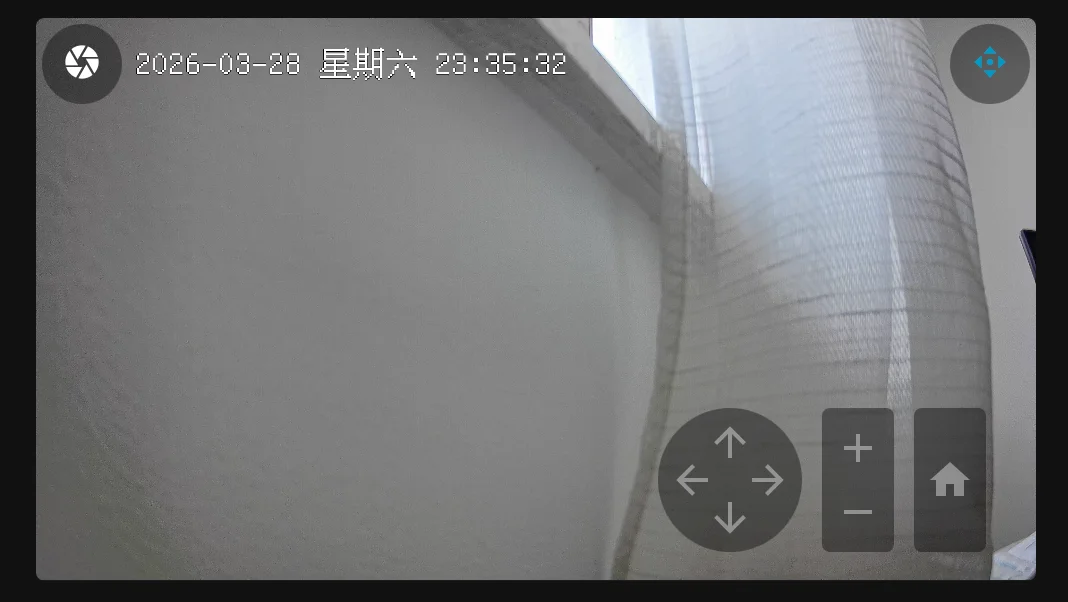
type: custom:advanced-camera-card
cameras:
  - camera_entity: camera.tp_ipc_mainstream
    live_provider: auto
menu:
  buttons:
    ptz_controls:
      enabled: true
      permanent: true
      alignment: opposing
    ptz_home:
      enabled: true
      permanent: false
    substreams:
      permanent: false
I couldn’t get PTZ working on this and it felt a bit clunky. However it seems like it has a ton of features I didn’t get a chance to dig into.